Why Did My Photos Disappear from My iPhone and How to Recover Them?
Lost photos from your iPhone and still wondering how to recover them? Photo deletion is really frustrating, particularly when the deleted photos contain important memories. Whether the photos from your iPhone are deleted accidentally or lost due to iCloud sync issues, storage problems, or accidental account changes, don’t worry, there’s always a way you can recover your photos.
Fortunately, various photo recovery methods are available that you can utilise to recover photos from an iPhone. In this blog, we’ll talk about the various reasons for pictures missing from iPhone and quick ways to recover those photos. Let’s dive right into it.
There can be many reasons behind photo loss on iPhones. Some photos are deleted due to accidental deletion, while others might be affected by iCloud syncing or storage restrictions. Let’s explore a few common data loss issues in detail:
Whether it’s accidental deletion, an iCloud sync issue, or a storage-related problem, recovery is possible in most instances. You can go through the following methods one by one to recover your deleted photos from iPhone:
Before applying advanced photo recovery, it’s important to check the Recently Deleted folder in Photo app. Every deleted photo goes to this album and remains there until permanently erased. If your missing photos are present there, follow the below steps to restore them:
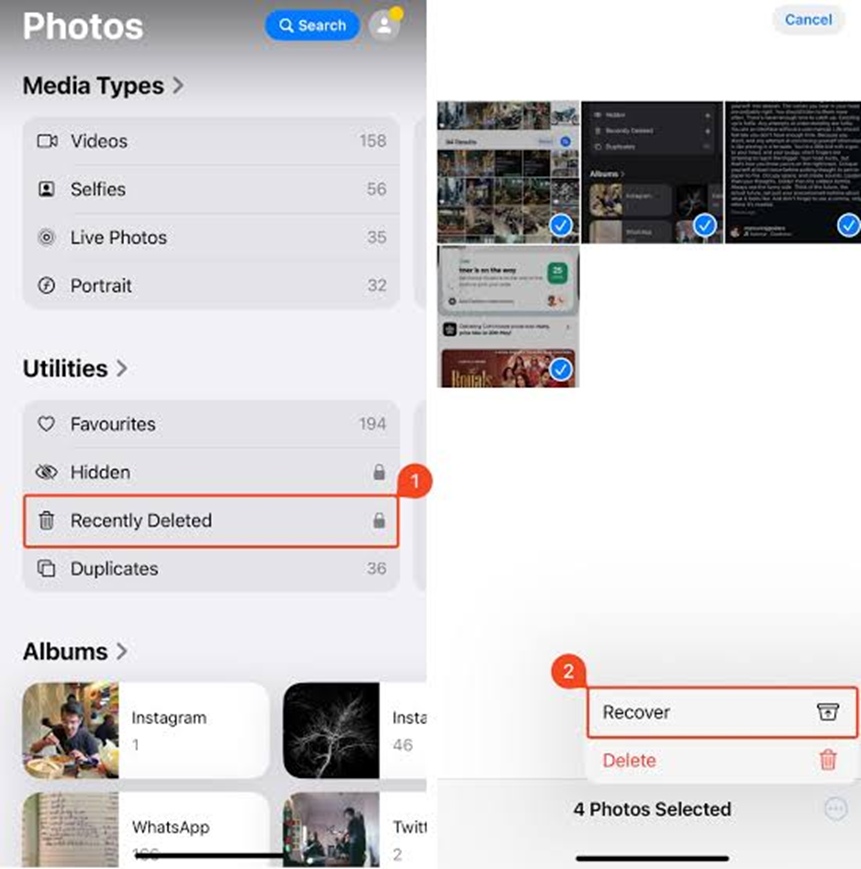
This method works best when your photos were recently deleted. If they are not in this folder, you need to go with advanced workarounds given below.
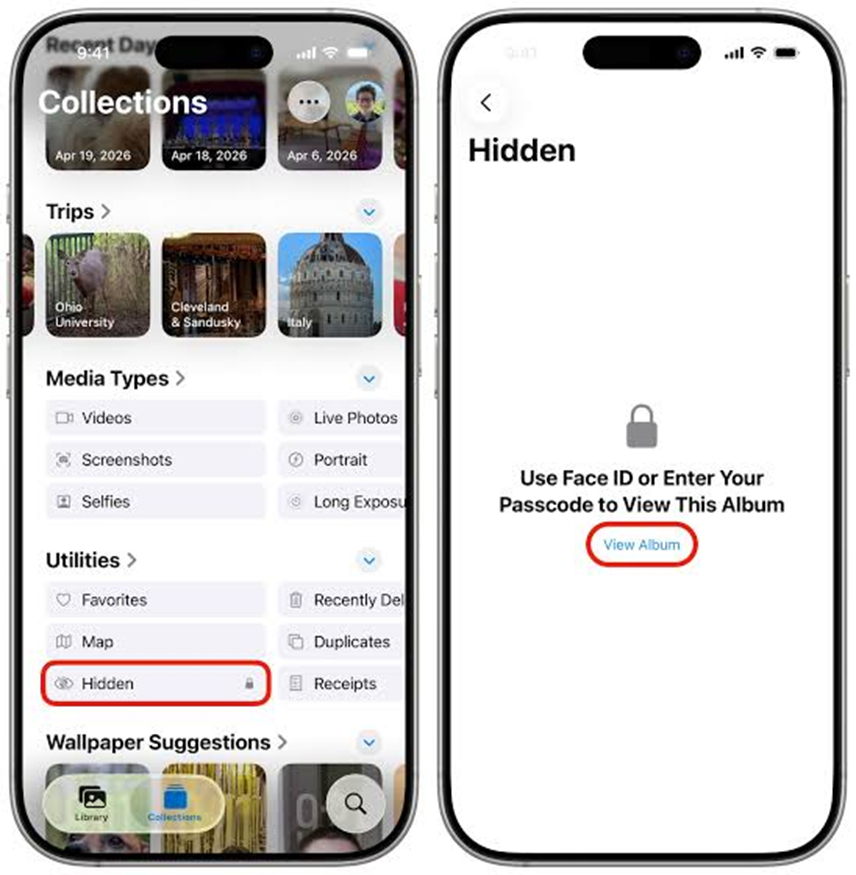
Instances may happen when your deleted photos do not exist in the Recently Deleted album. Generally, they either get displaced or stored in the Hidden album. In such cases, it would be good to look for the required photos in the Hidden album through the respective Albums tab in the Photos app. All you have to do is:
If your photos disappeared from your iPhone but iCloud Photos is enabled, they may still be safe in the cloud, with a sync issue on the device. To check:
Note: Avoid deleting or changing iCloud settings repeatedly while troubleshooting, because unnecessary changes can make synchronization more confusing.
If you backed up your iPhone to a Mac or PC using Finder (or iTunes on older macOS/Windows) before the photos went missing, you can restore that backup — but note this replaces your iPhone’s current data with the backup’s, so it’s not a selective “just get my photos back” option.
Important: Back up your iPhone’s current state first, since this process overwrites everything currently on the device, not just photos.
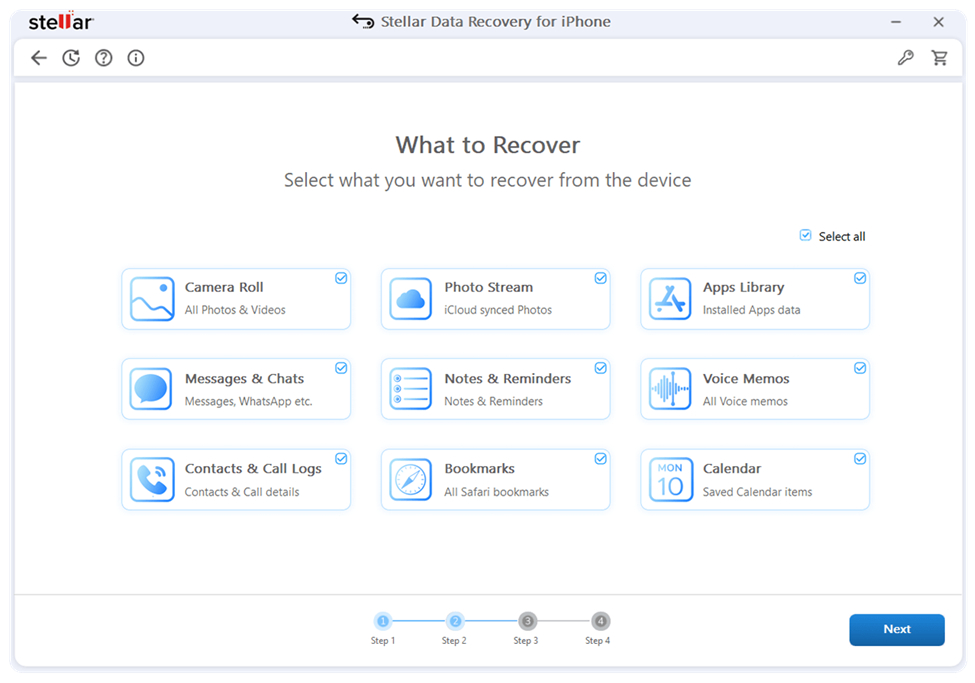
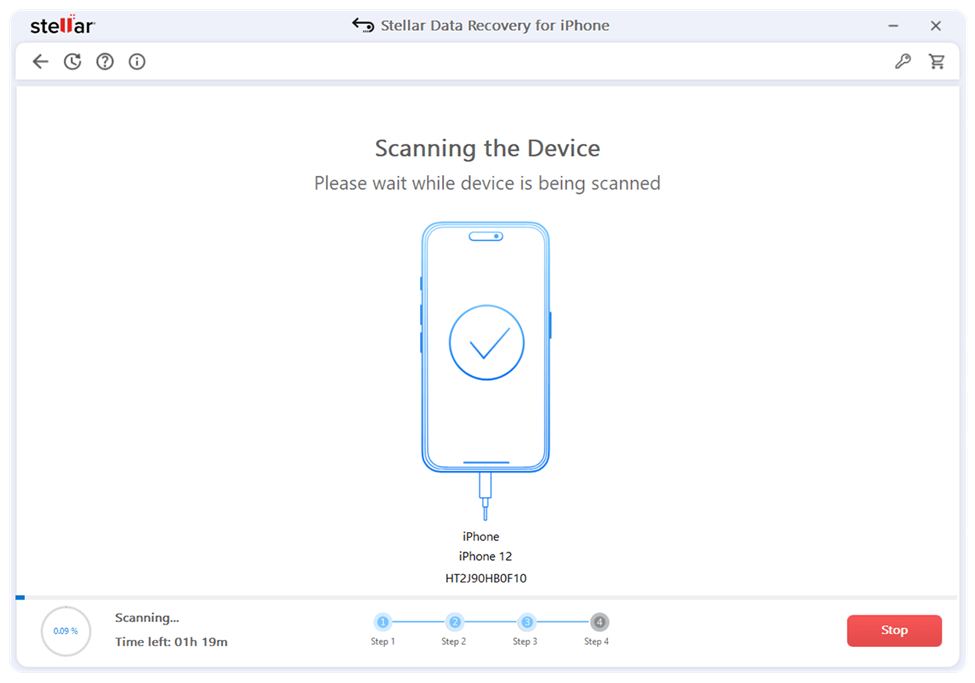
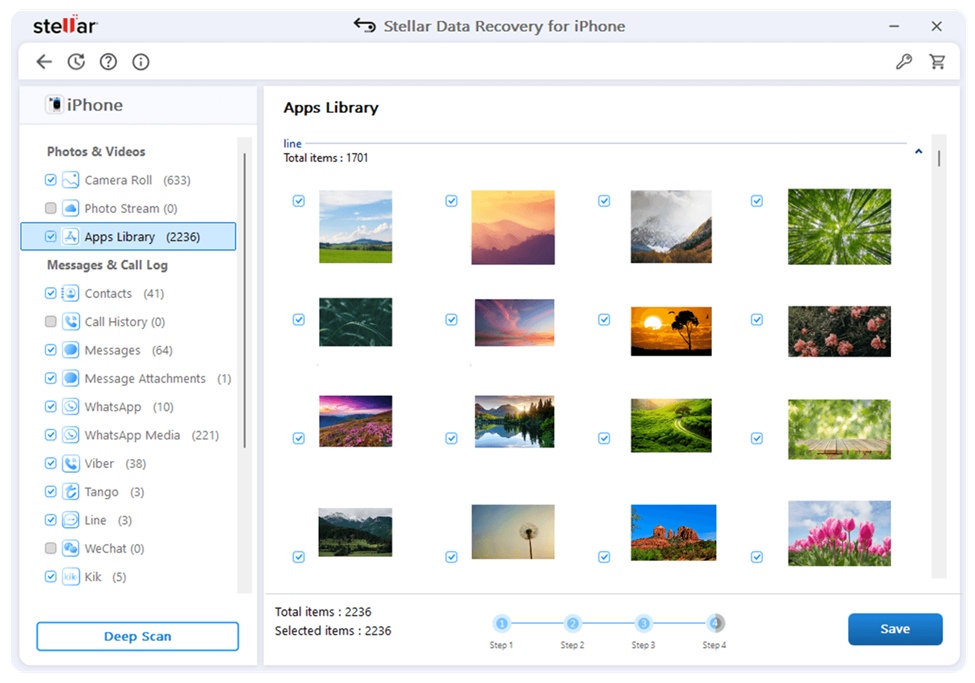
In case if traditional recovery methods fail to find your photos, try third-party data recovery software for iPhone like Stellar Data Recovery for iPhone as an most reliable solution. These programs completely scan your iPhone storage to find recoverable information but recovery success depends mainly on how long ago your photos were deleted and if they are overwritten by new files. This software enables you to recover lost or deleted data from any supported iPhone or from its iTunes or iCloud backup.
To recover your photos using the Stellar Data Recovery for iPhone tool, you have to:
01: Why are my photos suddenly disappeared from my iPhone?
There are several issues including accidental deletion, iCloud synchronisation issues, disabled iCloud Photos, or using a different Apple Account why photos may appear deleted on your iPhone.
02: How can I restore deleted photos on my iPhone?
When you find photos missing from your iPhone, immediately go with recovery workarounds like checking the Recently Deleted album or Hidden folder, using third-party iPhone data recovery tool, etc. to get your lost photos back.
03: Are iPhone data recovery software safe for photo recovery?
Many reliable tools like Stellar Data Recovery for iPhone offer high recovery rate and safety for photo recovery. You must check the features of these tools before you use them.
Just because photos are not visible in the Photos app of your iPhone, it doesn’t mean that they are lost forever. You can go through the aforementioned iPhone photo recovery methods one by one to find your deleted photos. Start with checking the Recently Deleted or Hidden album, then explore the possibility of any backups and synchronisation that may contain your lost photos.
However, if there are no backups and the photos have been deleted permanently, their recovery will be far more complicated. In such cases, you can utilise third-party iPhone data recovery software like Stellar Data Recovery for iPhone to get your photos back. Thus, the most efficient prevention is consistent backups and storage of photos in at least two places. These backups play a crucial role in the quick recovery of your lost photos and other files in case of sudden deletion.
Build a professional consulting or corporate website with Alexi. Modern design, responsive layouts, and flexible customization—perfect for business, agency, and service websites.
