How to Edit a PDF Document? Easy Steps
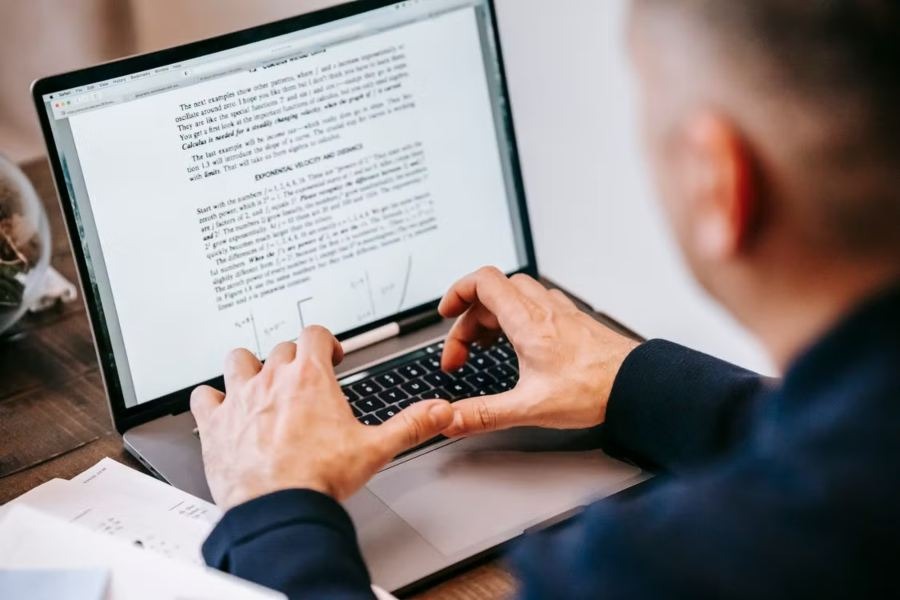
Many people use PDF files for business, study, office work, forms, resumes, reports, invoices, and contracts. PDFs are popular because they keep the same design and layout on almost every device. But when you need to change something, the file may feel hard to edit. If you want to quickly edit, annotate, or add text to your PDF, you can use tools like Write on PDF Document.
If you are asking How to edit a pdf document?, the answer is simple. You need the right PDF editing tool based on your file type. Some PDFs allow direct text editing, while scanned PDFs need OCR before you can change the text.
You can edit a PDF using tools like Adobe Acrobat, Microsoft Word, Google Docs, Foxit PDF Editor, Mac Preview, LibreOffice, or trusted online PDF editors. You can change text, add images, remove pages, fill forms, add comments, insert signatures, and save the file again as a PDF.
In this guide, you will learn the easiest ways to edit PDF documents without confusion.
PDF editing depends on the type of change you want to make. Some edits are simple, while others need a professional PDF editor.
You can usually make these changes in a PDF:
If your PDF was created from Word, Google Docs, or another digital file, it is usually easier to edit. But if the PDF is scanned from paper, the text may work like an image. In that case, you need OCR to make the text editable.
Knowing How to edit a pdf document? helps you save time because you do not always need the original file. You can fix small mistakes, update old information, and prepare clean documents quickly.
Easy PDF text and image editing helps you update a PDF without creating the file again from scratch. You can fix text, replace old images, add new visuals, and make small changes while keeping the document clean and professional.
To edit PDF text, open the file in a PDF editor and select the text editing option. Then click the text you want to change. You can fix spelling mistakes, update dates, change names, or rewrite short lines.
Microsoft Word can also edit some PDF files. Open Word, select the PDF, allow Word to convert it, make your changes, and save it again as a PDF. This works best for simple text-based PDFs.
You can add images like logos, screenshots, product photos, stamps, or signatures. Use the image tool in your PDF editor, upload the image, and place it where needed.
After adding the image, check its size and position. A clear and well-placed image makes the PDF look professional.
PDF editors also let you delete, rotate, split, merge, or rearrange pages. This is useful when a document has extra pages or the page order is wrong.
Always review the full PDF after changing pages to make sure everything is in the correct order.
Editing a PDF is possible on Windows, Mac, and online with the right tool. Whether you want to change text, add images, sign forms, or organize pages, each platform offers simple options for quick and clean PDF updates.
Windows users can edit PDFs with Microsoft Word, Adobe Acrobat, Foxit PDF Editor, LibreOffice Draw, or online PDF tools. For simple edits, Word is easy. For advanced edits, use a dedicated PDF editor.
If you only need to highlight or add notes, Microsoft Edge can also help. But it is not the best tool for changing original PDF text.
Mac users can use Preview for basic PDF editing. Preview lets you add text, signatures, shapes, highlights, notes, and comments. You can also rotate, delete, and rearrange pages.
For direct text editing, use a full PDF editor like Adobe Acrobat, Foxit, or PDF Expert.
Online PDF editors are helpful for quick edits. You can upload the PDF, add text, sign forms, highlight content, delete pages, or download the edited file.
But do not upload private or sensitive documents to unknown websites. For contracts, legal files, bank details, or personal documents, use trusted offline software.
A scanned PDF is different from a normal PDF. It may look like text, but the computer sees it as an image. That means you cannot directly click and edit the words.
To edit a scanned PDF, you need OCR. OCR means Optical Character Recognition. It reads the text from the scanned image and turns it into editable text.
The process is simple:
OCR is very useful for scanned forms, old documents, printed contracts, receipts, certificates, and book pages. However, OCR is not always perfect. If the scan is blurry, dark, or tilted, the tool may make mistakes.
So, after using OCR, always check names, dates, numbers, addresses, and important details carefully.
If someone asks How to edit a pdf document? when the file is scanned, the best answer is: use OCR first, then edit the file.
Before editing any PDF, keep a backup copy of the original file. This helps you recover the document if the formatting changes or something goes wrong.
Use the right tool for the right task. If you only need comments or highlights, a basic PDF viewer is enough. If you need to change text, images, or pages, use a full PDF editor.
Also, check the formatting after every edit. Make sure the font, spacing, images, margins, and page order still look clean. A small mistake can make the document look unprofessional.
For sensitive files, avoid unknown online tools. Private documents should be edited with trusted software. This includes legal papers, business files, personal IDs, financial documents, and contracts.
Finally, save the edited PDF with a clear file name. For example, use names like “contract-edited.pdf,” “resume-updated.pdf,” or “invoice-final.pdf.”
Learning How to edit a pdf document? is useful for students, office workers, business owners, freelancers, and everyday users. You can edit text, add images, fill forms, sign documents, organize pages, and even edit scanned PDFs with OCR.
The best method depends on your file. Use Microsoft Word or Google Docs for simple text edits. Use Adobe Acrobat, Foxit, or another PDF editor for professional changes. Use Preview on Mac for quick notes and signatures. Use OCR for scanned files.
Always keep a backup, protect private files, and review the final PDF before sharing it.
Yes, you can use free tools like Google Docs, Microsoft Word, LibreOffice Draw, Mac Preview, or online PDF editors for basic PDF editing.
You can use Microsoft Word, Google Docs, Foxit, LibreOffice Draw, Mac Preview, or trusted online PDF tools.
Your PDF may be scanned, locked, or image-based. If it is scanned, you need OCR to convert the text into editable content.
Yes, you can edit a scanned PDF by using OCR software. OCR turns scanned text into editable text.
Online PDF editing is fine for simple files. But for private, legal, financial, or business documents, use trusted offline software.
The easiest way is to open the PDF in Microsoft Word, Google Docs, or a PDF editor, make changes, and save it again as a PDF.
Build a professional consulting or corporate website with Alexi. Modern design, responsive layouts, and flexible customization—perfect for business, agency, and service websites.
